A GST DSC error can prevent businesses and Chartered Accountants from submitting returns, completing registration applications, or signing documents on the GST portal.
The problem may be an expired Digital Signature Certificate (DSC), an unregistered certificate, an inactive emSigner service, or a USB token that the computer cannot detect.
The good news is that most common DSC issues can be investigated through a few practical checks. This guide explains the possible causes, step-by-step fixes, and ways to avoid repeated signing problems during GST filing.
What Is a GST DSC Error?
A GST DSC error occurs when the GST portal cannot successfully use a Digital Signature Certificate to authenticate and sign an online submission.
A DSC is an electronic certificate used to verify the signer’s identity. On the GST portal, eligible taxpayers can use it to digitally sign applications and returns. Companies and LLPs are generally required to use DSC for filing, while other eligible taxpayers may have alternative verification options depending on the form and applicable rules.
According to the GST Portal’s guidance for GSTR-1, the DSC must be valid, registered on the portal, and accessible through the required signing software.
Why Is Your Digital Signature Not Working on the GST Portal?
The cause usually falls into one of these categories:
- Expired or revoked DSC: The certificate is no longer valid for signing.
- DSC not registered: The certificate has not been registered against the relevant taxpayer on the GST portal.
- Incorrect PAN details: The certificate does not meet the portal’s PAN related requirements.
- emSigner not running: The local signing service is not active or cannot communicate with the portal.
- USB token not detected: The computer cannot access the DSC stored on the token.
- Browser or connectivity issues: Browser settings, security software, or communication problems interfere with signing.
- Conflicting applications: Another application may be occupying a port required by the signing service.
Identifying the specific error message can help you choose the right fix instead of reinstalling software unnecessarily.
How to Fix a GST DSC Error: Step-by-Step
1. Check Whether Your DSC Is Valid
Connect your DSC token and check the certificate details using the token provider’s software.
Verify that:
- The certificate has not expired.
- The certificate has not been revoked.
- The PAN details match the relevant requirements.
- You are using the intended authorized signatory’s certificate.
If the DSC has expired, contact your licensed Certifying Authority to obtain a valid replacement. Reinstalling emSigner will not resolve an expired certificate.
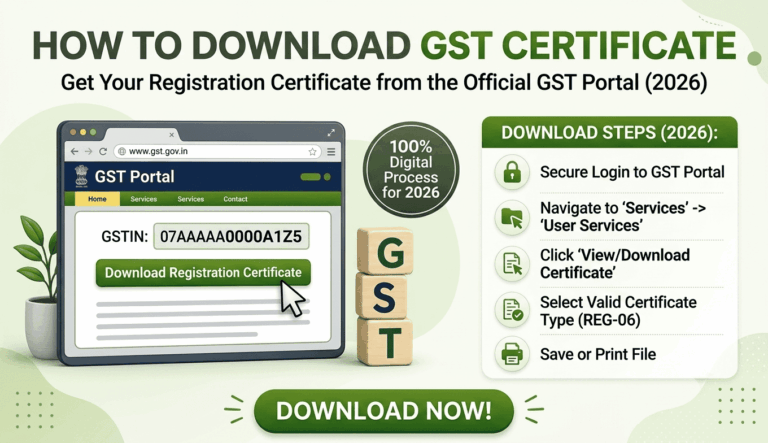
2. Register Your DSC on the GST Portal
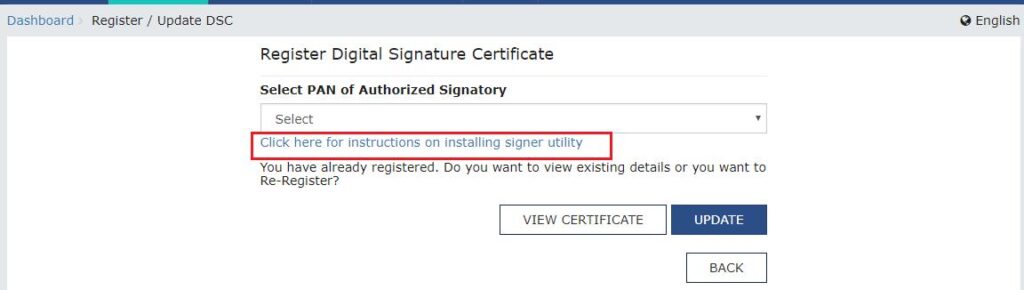
A valid certificate may still fail if it has not been registered correctly.
To check:
- Log in to the official GST portal.
- Navigate to the relevant Register/Update DSC option.
- Select the appropriate authorized signatory, if prompted.
- Connect the DSC token and ensure the required signing software is running.
- Follow the portal’s instructions to register the certificate.
Menu labels may change as the portal is updated. If registration fails, verify the authorized signatory details and certificate validity before trying again.
3. Install or Restart emSigner
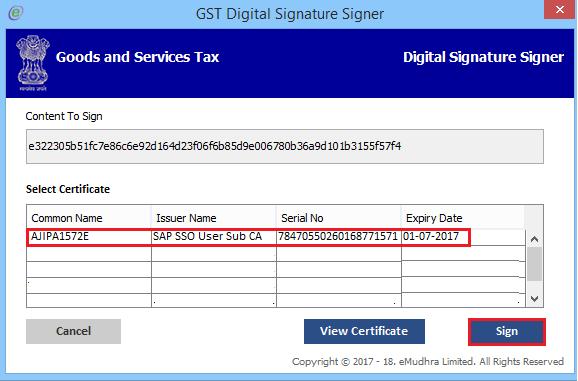
emSigner is a local application that helps the GST portal communicate with your digital signature token.
If you see an error such as “Unable to connect to the installed emSigner,” check the following:
- Confirm that the version required by the GST portal is installed.
- Close emSigner and restart it using the appropriate permissions.
- Ensure the application is running before attempting to sign.
- If the problem continues, restart your computer and try again.
Use the official GST Portal guidance to identify the required software version and installation steps. Avoid downloading signing software from unverified websites.
4. Check the DSC USB Token and Drivers
If the portal cannot detect your certificate, the problem may be with the token or its drivers.
Try these checks:
- Disconnect and reconnect the USB token.
- Try another USB port.
- Confirm that the token appears in the manufacturer’s management software.
- Install or update the correct token driver using the provider’s official instructions.
- Check whether the certificate is visible in the token software.
If the certificate is not detected by the token software itself, troubleshoot the token or driver before returning to the GST portal.
5. Resolve Browser or emSigner Connection Issues
The GST portal’s official troubleshooting document includes a specific solution for the error “Unable to connect to the installed emSigner.”
It advises users to close applications running on ports 1585, 2095, 2568, 2868, and 4587, restart the system, and try again. It also recommends clearing browser history and browsing data.
Follow these precautions:
- Save your work and close unnecessary applications.
- Restart the computer.
- Clear the browser’s cached data if appropriate.
- Open the GST portal in a supported, updated browser.
- Start emSigner and retry the signing process.
If you are unsure which application is using a port, ask your IT administrator for help rather than terminating unfamiliar processes.
6. Retry the Filing Process
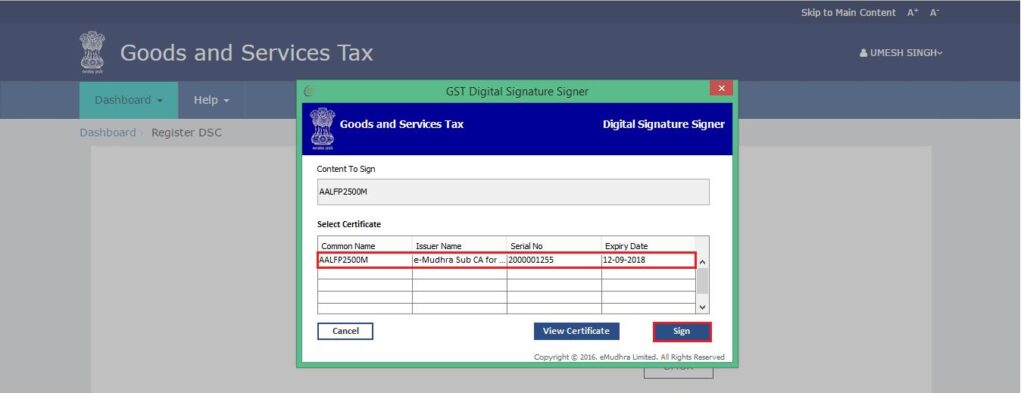
Once the certificate, token, and signing service are working, return to the relevant GST application.
Check that the return or form is ready for submission, select the DSC signing option, and follow the portal’s instructions. After signing, verify the submission status and look for the relevant acknowledgement or reference number.
Do not assume that a return has been filed simply because the signing window closed.
Common GST DSC Errors and Their Solutions
| Error or symptom | Possible cause | What to check |
|---|---|---|
| DSC not registered | Certificate registration is incomplete | Register or update the DSC on the GST portal |
| DSC expired | Certificate validity has ended | Obtain a valid certificate |
| emSigner connection error | Signing service is unavailable | Restart emSigner and check the official troubleshooting steps |
| USB token not detected | Driver or USB connection issue | Check the token software and drivers |
| PAN mismatch | Certificate details do not meet portal requirements | Verify the PAN associated with the DSC |
| Signing fails repeatedly | Browser, port, or communication issue | Restart the system and troubleshoot the connection |
These are possible causes, not definitive diagnoses. The exact error message and your computer’s configuration determine the appropriate fix.
Illustrative Example: A CA Firm Facing a GST Filing Delay
A CA firm is preparing GSTR-1 for several company clients. The return is ready, but the GST portal repeatedly displays an emSigner connection error.
The team initially tries registering the DSC again, but the problem continues. After checking the official troubleshooting guidance, they restart the computer, ensure emSigner is running, and investigate applications using the relevant ports.
The signing process works after the connection issue is resolved.
Lesson: Before changing certificate settings, identify whether the problem is with the DSC itself or the software that connects it to the GST portal. This avoids unnecessary troubleshooting and helps the team return to filing sooner.
How Can You Prevent GST DSC Errors During Filing?
A few simple checks can reduce avoidable delays:
- Check DSC expiry dates before important filing deadlines.
- Confirm that the correct authorized signatory is registered.
- Keep token drivers and signing software updated according to official guidance.
- Test the signing setup before beginning deadline-sensitive work.
- Keep the token secure and use it only through trusted applications.
- Record the exact error message if a problem occurs again.
For CA firms handling multiple clients, a standard pre-filing checklist can help staff identify certificate and system issues before they interrupt the filing workflow.
How WebLedger Fits into a CA Firm’s GST Workflow
Resolving a DSC error is a technical task, but managing multiple clients and their compliance work is an operational challenge.
WebLedger Office is a practice management platform designed for CA firms and tax consultants. Its practice management capabilities include due-date tracking, client management, task tracking, billing, and notice management.
These capabilities can help firms organize client work and monitor compliance related tasks.
However, WebLedger Office does not replace the GST portal’s DSC registration process or fix a certificate, token, or emSigner error automatically. Digital signing issues must still be resolved through the appropriate GST Portal and certificate provider procedures.
For firms managing many GST clients, combining an organised internal workflow with a reliable DSC troubleshooting process can make filing operations easier to coordinate.