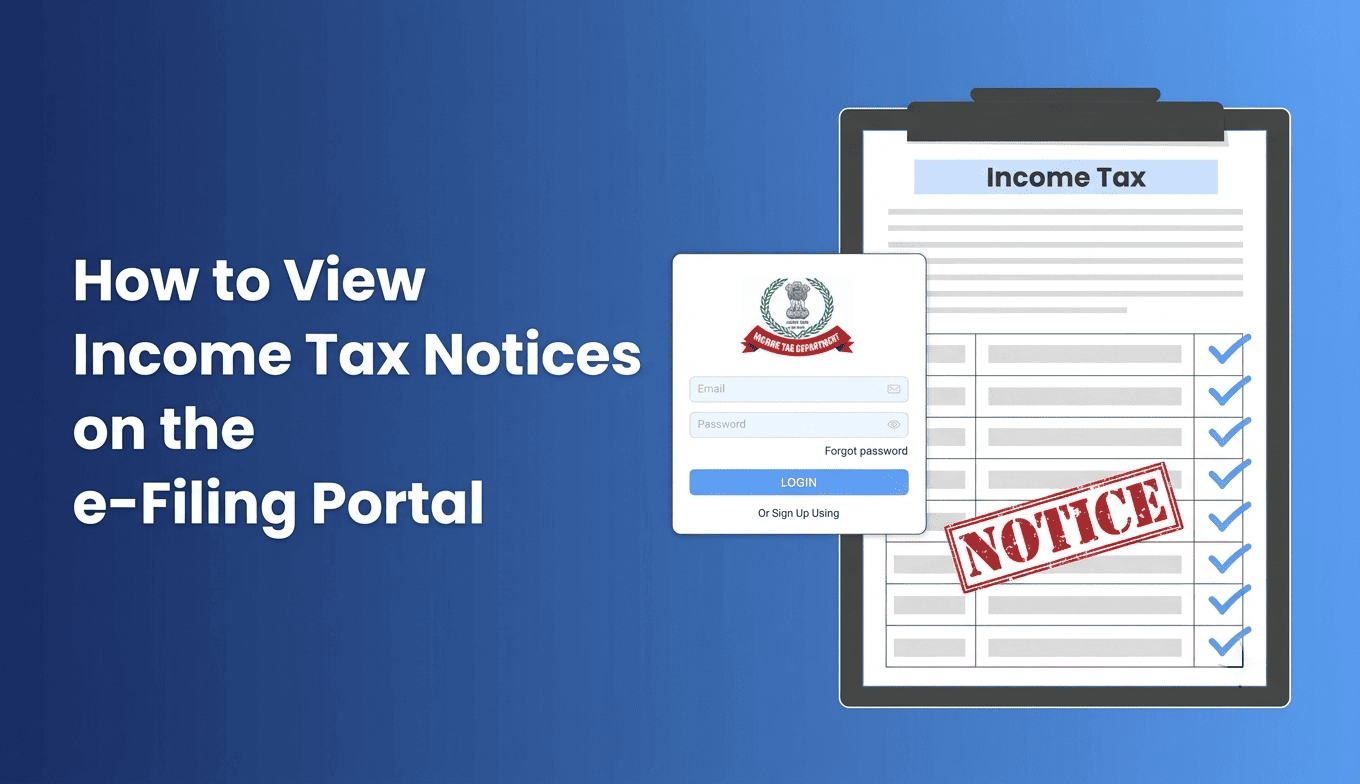
Receiving an income tax notice can be confusing, especially when you are unsure why it was issued or where to find the complete document.
The good news is that you can check income tax notices online through the official Income Tax e-Filing portal. The portal provides access to tax related communications, pending actions, and e-Proceedings, where taxpayers can view relevant notices and respond when required.
Whether you are an individual taxpayer, a business owner, or a Chartered Accountant managing multiple clients, knowing how to fetch an income tax notice online helps you identify pending matters and take the appropriate next step.
In this guide, you will learn how to view income tax notices on the e-Filing portal, verify whether a notice is genuine, understand what to do after downloading it, and avoid common mistakes while managing tax notices.
What Is an Income Tax Notice?
An income tax notice is an official communication from the Income Tax Department regarding a taxpayer’s income tax return, tax liability, compliance requirements, or other tax related matter.
Depending on the circumstances, a notice may request additional information, clarification about a transaction, a response to a proposed adjustment, or action regarding an outstanding tax demand.
For example, a taxpayer might receive a notice asking for clarification about a difference between the income reported in the income tax return and information available to the department.
Receiving a notice does not automatically mean that you have committed a tax violation. The appropriate response depends on the purpose of the notice, the facts of the case, and the applicable provisions of tax law.
The first step is to locate the notice, read its contents carefully, and identify whether any action is required.
How to View Income Tax Notices on the e-Filing Portal
You can generally access notices and related communications through the Income Tax Department’s e-Filing portal after logging in with your credentials.
Follow these steps to check your notices online.
Step 1: Visit the Official Income Tax e-Filing Portal
Open the official website of the Income Tax Department:
Make sure you are using the official government website before entering your PAN, password, or other personal information.
Step 2: Log In to Your Account
Click the Login option and enter your user ID and password.
For individual taxpayers, the PAN is commonly used as the user ID. Other taxpayer categories may have different login identifiers.
Complete any additional authentication steps requested by the portal.
After logging in, you will reach your account dashboard, where you can access different income tax services.
Step 3: Open Pending Actions
Look for the Pending Actions menu.
The portal provides access to services such as Worklist, e-Proceedings, and Compliance. These sections serve different purposes, so choose the one relevant to the communication you need to check.
The Income Tax Department’s dashboard guidance explains that e-Proceedings can be used to check notices, letters, and intimations issued by the department and respond to them.
Step 4: Select e-Proceedings
Navigate to:
Pending Actions → e-Proceedings
Review the available records and identify the notice or proceeding relevant to your PAN.
Depending on the type of communication and the portal workflow, you may find details such as the notice, issuing authority, date, reference information, and response related options.
Portal menus and workflows may change, so follow the options displayed in your current account.
Step 5: Open the Relevant Notice
Select the relevant record to view its details.
Read the notice carefully before taking any action. Pay particular attention to:
- The purpose of the notice.
- The assessment year or tax year mentioned.
- The section or provision cited, where applicable.
- The information or documents requested.
- The response deadline.
- The method prescribed for submitting your response.
If a downloadable document is available, save a copy for your records.
Step 6: Check Whether a Response Is Required
Not every communication requires the same action.
Some communications may be informational, while others require a response, supporting documents, clarification, or another specified action.
Read the instructions in the notice rather than assuming that every notice follows the same process.
If a response is required, prepare it according to the instructions and submit it through the relevant portal service within the applicable deadline.
Important: The steps above describe the general route for accessing notices through e-Proceedings. Other communications may be available through different services, such as Worklist or the Compliance Portal.
For official guidance, visit the Income Tax Department’s Responding to Notices help section.
How to Fetch an Income Tax Notice Online Without Logging In
Sometimes, you may receive a notice by email or another communication channel and want to check whether it was genuinely issued by the Income Tax Department.
In this situation, you can use the portal’s Authenticate Notice/Order issued by ITD service.
This is different from retrieving all notices associated with your account. Its primary purpose is to verify the authenticity of a specific communication.
The service is available as a pre-login facility, so you do not need to sign in to use it.
Steps to Authenticate an Income Tax Notice
- Visit the official Income Tax e-Filing portal.
- Find Authenticate Notice/Order issued by ITD under Quick Links.
- Select one of the available verification methods.
- Enter the requested information.
- Complete the OTP verification process.
- Review the authentication result displayed by the portal.
The official service provides two verification methods.
Method 1: Using taxpayer and notice details
You can enter the requested details, which include PAN, document type, the relevant year type and year, date of issue, and a mobile number.
After submitting the information, enter the OTP received on the mobile number provided.
Method 2: Using the Document Identification Number
If you have the Document Identification Number (DIN), select the DIN based option and enter the DIN and a mobile number.
Complete the OTP verification to check the result.
According to the department’s user manual, a successful verification displays information confirming whether a notice or other communication was issued by the Income Tax Department.
If no matching record is found, check the information you entered and follow the portal’s guidance.
You can consult the official Authenticate Notice/Order user manual for the current procedure.
How to Check Whether an Income Tax Notice Is Genuine
Before responding to an income tax notice, verify that the communication is authentic.
This is particularly important when you receive a notice through email, a message, or another channel and are asked to provide documents or make a payment.
The Income Tax Department provides a facility to authenticate notices, orders, summons, letters, and other communications.
What Is a DIN?
DIN stands for Document Identification Number. It is a unique identification number used for communications issued by the Income Tax Department.
The department’s official guidance states that communications issued by income tax authorities on or after 1 October 2019 are required to bear a DIN, subject to applicable exceptions and prescribed procedures.
The absence of a DIN should therefore be investigated in accordance with the department’s applicable rules and guidance rather than treated as a reason to ignore every communication automatically.
What Should You Do If Verification Fails?
If the portal does not find a matching notice:
- Check whether the DIN was entered correctly.
- Verify the PAN, document type, year, and date of issue if you are using the alternative method.
- Review the authentication result and official guidance.
- If the discrepancy remains unresolved, contact the department through its official support channels or consult a qualified tax professional.
Do not ignore a communication solely because an initial search returns no result.
Likewise, do not click suspicious links or share passwords, OTPs, or confidential financial information with unverified senders.
Where Else Can You Find Income Tax Notices and Pending Tax Actions?
The e-Filing portal contains several services that help taxpayers manage different types of tax related communications.
Understanding the difference between them can make it easier to locate the correct record.
| Portal section | What it helps you do |
|---|---|
| Dashboard | Access an overview of your tax account and available services. |
| Worklist | Review pending action items and information available in your account. |
| e-Proceedings | View relevant notices, letters, and intimations and respond where required. |
| Compliance Portal | Access applicable compliance-related services, including e-Campaign and e-Verification. |
| Authenticate Notice/Order issued by ITD | Verify whether a specific communication was issued by the department. |
| Response to Outstanding Demand | Access the service for responding to an outstanding tax demand. |
The exact options available to you may depend on the type of taxpayer, the communication issued, and the status of the relevant proceeding.
For example, a taxpayer checking a notice that requires a formal response may need to use e-Proceedings. Someone verifying a notice received by email may instead need the authentication service.
Choosing the correct service helps avoid confusion between locating a document, verifying its authenticity, and submitting a response.
What Should You Do After Downloading an Income Tax Notice?
Finding the notice is only the first step. You must also understand what it asks you to do.
Use the following checklist after opening the document.
1. Identify the Reason for the Notice
Read the opening section and identify the purpose of the communication.
It may concern a return, a request for information, a proposed adjustment, an outstanding demand, or another matter.
Do not assume that every notice is related to a mismatch in reported income.
2. Check the Relevant Year
Confirm the assessment year or tax year mentioned in the document.
This helps you identify the relevant return, financial records, and supporting documents.
Use the year terminology and details specified in the notice.
3. Note the Response Deadline
Look for the date by which you must respond.
Different notices can have different deadlines, and the applicable time limit depends on the relevant provision and the instructions in the communication.
Record the deadline and allow enough time to collect the required documents.
4. Collect Supporting Documents
Depending on the issue, relevant records might include:
- A copy of the income tax return.
- Form 16 or other relevant income statements.
- Bank statements.
- TDS details.
- Investment or deduction proofs.
- Relevant invoices or transaction records.
- Earlier submissions or correspondence with the department.
These are examples, not a universal document checklist. Submit only the information relevant to the notice.
5. Prepare and Submit the Response
Follow the response procedure specified in the notice and the relevant portal service.
Check that your explanation matches the supporting documents. Before submitting, review the response for accuracy and retain a copy of the submission and its acknowledgement, where available.
If the matter involves a complex tax position, a substantial demand, or a legal interpretation, consider obtaining professional advice from a qualified tax practitioner or Chartered Accountant.
Illustrative Example: How a CA Firm Can Manage an Income Tax Notice
Consider a Chartered Accountant who manages the tax compliance of several business clients.
One morning, the firm discovers that a client has received an income tax notice requesting clarification about a reported transaction.
The notice is available electronically, but the employee responsible for the client is occupied with return preparation. Another team member assumes that the partner has already reviewed it.
A few days later, the firm discovers that the notice requires a response within a limited period.
This is an illustrative example, not a real customer case.
The problem is not necessarily the portal or the notice itself. The problem is that the notice has not been assigned, reviewed, and tracked through a clear workflow.
A more organised approach would involve the following steps:
- Retrieve: Access the relevant notice through the official portal.
- Verify: Authenticate the communication when necessary.
- Record: Capture the notice date, relevant year, issue, and deadline.
- Assign: Identify the employee or professional responsible for handling it.
- Review: Have the appropriate person examine the notice and supporting documents.
- Respond: Submit the response through the prescribed channel.
- Track: Retain the submission acknowledgement and monitor any subsequent communication.
For CA firms, maintaining a central record of notices, assigned responsibilities, deadlines, and response status can reduce the risk of overlooked work.
This is where practice management processes become valuable. WebLedger Office is a practice management platform for CA firms, with capabilities related to task and team tracking and notice management. Firms evaluating software should confirm the specific notice-handling features and workflows available in their chosen configuration before implementation.
Software can support internal coordination, but it does not replace the official Income Tax Department portal for accessing and responding to tax notices.
Common Mistakes to Avoid When Checking Income Tax Notices
1. Checking Only Your Email
Why it happens: Taxpayers often expect every important communication to arrive in their inbox.
Why it matters: An email notification and the official notice or proceeding are not the same thing.
What to do instead: Check the relevant services on the official e-Filing portal and review the communication itself.
2. Ignoring the Response Deadline
Why it happens: The taxpayer finds the notice but postpones reviewing it.
Why it matters: Missing an applicable deadline can complicate the matter.
What to do instead: Record the deadline immediately and determine what documents or professional assistance are required.
3. Treating Every Notice as a Tax Demand
Why it happens: The word “notice” creates the impression that additional tax must be paid.
Why it matters: Different notices request different actions. Some require information or clarification rather than payment.
What to do instead: Read the purpose and instructions before deciding how to respond.
4. Ignoring Notice Authentication
Why it happens: The recipient assumes that a communication using the department’s name must be genuine.
Why it matters: Fraudulent messages can imitate official communications.
What to do instead: Use the official authentication service when verification is needed, and avoid sharing sensitive information through unverified links.
5. Failing to Retain Submission Records
Why it happens: The taxpayer submits a response and moves on to other work.
Why it matters: Later, the taxpayer or their CA may need to confirm what was submitted and when.
What to do instead: Retain the notice, supporting documents, submitted response, and acknowledgement where available.
Best Practices for Chartered Accountants Managing Multiple Client Notices
For CA firms and tax consultants, checking an individual notice is only one part of the process. The larger challenge is making sure every client’s notice receives timely attention.
A practical internal process should include:
- Centralised tracking: Maintain a record of relevant notices and their current status.
- Deadline monitoring: Record response dates and establish reminders before deadlines.
- Clear ownership: Assign each matter to a responsible employee or professional.
- Review procedures: Define when a partner or senior team member must review a response.
- Document retention: Store notices, working papers, submissions, and acknowledgements securely.
- Regular follow-up: Review open matters periodically to identify unresolved issues.
A spreadsheet may be sufficient for a small practice with a limited number of active matters. A larger firm may benefit from dedicated practice management software if it needs structured task assignment, team visibility, reminders, and reporting.
The appropriate approach depends on the firm’s size, workload, internal controls, and the complexity of its clients’ tax matters.
The objective is straightforward: every notice should have an identified owner, a clear next step, and a reliable record of what has happened.
Frequently Asked Questions
Log in to the official Income Tax e-Filing portal and navigate to Pending Actions → e-Proceedings. Look for the relevant notice or communication in the available records.
You can use the pre-login Authenticate Notice/Order issued by ITD service to verify a specific communication. This service is intended for authentication, not for retrieving every notice associated with your account.
Relevant notices and communications can be accessed through e-Proceedings. Other tax-related items may appear under Worklist, Compliance, or another applicable portal service.
Use the official Authenticate Notice/Order issued by ITD service. Enter the requested notice details or DIN and complete OTP verification.
DIN stands for Document Identification Number. It is a unique identification number used for communications issued by the Income Tax Department.
Check the relevant portal sections and verify that you are using the correct taxpayer account. If you received a specific communication, try the authentication service and contact the department if the discrepancy remains unresolved.
No. The required action depends on the type and purpose of the communication. Read the notice carefully to determine whether a response, document submission, payment, or another action is required.
The consequences depend on the type of notice, the applicable legal provision, and the circumstances. Review the notice promptly and seek professional advice if the deadline has passed.
A CA can assist clients with reviewing and responding to tax notices through the applicable authorised access and representation arrangements. The required access depends on the portal service and the client’s authorisation.
No. Practice management software can help CA firms coordinate tasks, track responsibilities, and manage internal workflows. Official notice access, authentication, and submissions must follow the applicable Income Tax Department portal procedures.